
NOTICE - The following tutorials are COPYRIGHTED material...any use or distributing to anyone other than a Gone Country Graphics or Your Boutique Site client is direct copyright violation.
NOTICE - The following tutorials are COPYRIGHTED
material...any use or distributing to anyone other than a Gone Country
Graphics or Your Boutique Site client is direct copyright violation.
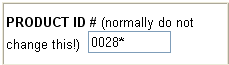 This box will automatically fill in with the next product number following the
highest listed in the store's database. Don't worry about the "*"
symbol in the product number. You may also enter any number you wish to keep it
uniform with your existing product codes. You will have to experiment if your
product numbers are not numbers to make sure that they appear right in your
store and the number is captured during checkout. For simplicity, please use
numbers only. Note: these characters are not allowed in the Product ID:
!,#,@,$,%,&,*,(,),{,},{,},|,\,/,=,+.-,?,<,>,~, commas, colons,
semi-colons, periods, and spaces.
This box will automatically fill in with the next product number following the
highest listed in the store's database. Don't worry about the "*"
symbol in the product number. You may also enter any number you wish to keep it
uniform with your existing product codes. You will have to experiment if your
product numbers are not numbers to make sure that they appear right in your
store and the number is captured during checkout. For simplicity, please use
numbers only. Note: these characters are not allowed in the Product ID:
!,#,@,$,%,&,*,(,),{,},{,},|,\,/,=,+.-,?,<,>,~, commas, colons,
semi-colons, periods, and spaces.
By default the product number is limited to 4 or less characters and will
advance in numerical sequence starting at 0001. To control the order that
products appear on a page you can use the product id number (pictures go in
order on the page according to the id numbers)
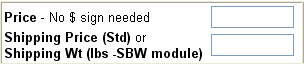 Enter the price you wish to charge for the product in the top box. Do not add
the "$" sign or your price on your page will show as 0. You should
enter the price in xxx.xx format (examples: 20.00, 349.00, 19.95)
Enter the price you wish to charge for the product in the top box. Do not add
the "$" sign or your price on your page will show as 0. You should
enter the price in xxx.xx format (examples: 20.00, 349.00, 19.95)
The shipping box has two ways info can be added.
If you want to charge according to package weight, (you can directly interface with UPS using the module found in the shipping section under the Program Settings menu or you can also sign up for an account at usps.com and use the USPS calculator ) You would enter the weight of the item plus a little extra weight for packaging. The shopping cart will then interface with your shipping carrier and figure the shipping in real time.
If you do not want to use shipping by weight, you can add a dollar amount for extra shipping, a handling fee or insurance costs for the individual product if it needs to differ from your standard shipping you have set. You can change the cart display, from the store manager menu, to title this function as you like (such as: Handling and Insurance). Remember that the main shipping costs are added and setup thru the shipping settings section in the Program Settings menu for you upon set up. This section is for EXTRA costs you wish to add to a product if you are not using a shipping interface (usps, ups, fed ex account), if you are using one of these then enter the product's weight in that box.
To set up your shipping chart by amount of
order total or by % of order please email [email protected]
with what you want set up.
^ TOP
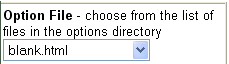 Choose the options file you wish to use for the product. If there are no options
available on your product, leave it the blank.html file.
Choose the options file you wish to use for the product. If there are no options
available on your product, leave it the blank.html file.
Options files allow you to post a single listing for products with multiple
colors, sizes, models, gift wrapping, etc. You may also charge additional costs
for differing options that the customer selects. You may have as many options
and option menus as you wish up to the limits of the Basic Option Editors edit
boxes provided (75 for the first box, 15 for the 2nd, 15 for the 3rd). If you need more option menus than you can make with the Editor or text box entry feilds
it will require us making them for you with html (email if you need a
specialized drop down made). In your store manager look for the Basic Option Editor
link to make your own drop downs.
EDITING YOUR OPTION DROP DOWN FILES
You can add and edit drop downs using your Basic Option Editor in your store manager
First step is to name your option file..
such as colors.html , then simply type the choices in the boxes on
the next screen. In most cases you are not adding $ for a choice so leave the $
section behind each one blank. Save your changes. Then go to your product and
add the colors.html option file to it (instead of the blank.html that was there
by default) so it will show on your page.
^ TOP
 Enter
the product category page you wish the product to appear on. This is case
sensitive so you will need to type the EXACT name of the page. Your pages are
listed in your Important Website Email you received and also in the Store
Manager when you click Edit Products. If you use the same category name but with different letter cases, they will be treated as separate categories. For
example, if you sell shirts and you type in shirts for one product, SHirts for
another, and SHIRTS for yet another, these three products will be classified as
three different product categories and create new pages on your site. The new
pages you add will be NOT be added to your regular index of links until you request that maintenance to be done for you or if you add them to the menu.htm page in your cart/html/main/ folder in the file manager of your site.
Enter
the product category page you wish the product to appear on. This is case
sensitive so you will need to type the EXACT name of the page. Your pages are
listed in your Important Website Email you received and also in the Store
Manager when you click Edit Products. If you use the same category name but with different letter cases, they will be treated as separate categories. For
example, if you sell shirts and you type in shirts for one product, SHirts for
another, and SHIRTS for yet another, these three products will be classified as
three different product categories and create new pages on your site. The new
pages you add will be NOT be added to your regular index of links until you request that maintenance to be done for you or if you add them to the menu.htm page in your cart/html/main/ folder in the file manager of your site.
You may use a single word or use multiple words with no spaces for new page
names. Note: these characters are not allowed in the Product ID:
!,#,@,$,%,&,*,(,),{,},{,},|,\,/,=,+.-,?,<,>,~, commas, colons,
semi-colons, periods, and spaces.
^ TOP
 Enter
the product name. This will be the text that is bolded above the product
description and the text used to identify the product in order confirmations and
in store searches. Make sure the product is identifiable to you and your
customer. Note: these characters are not allowed in the Product Name !,#,@,$,%,&,*,(,),{,},{,},|,\,/,=,+,?,<,>,~, colons, and semi-colons.
Enter
the product name. This will be the text that is bolded above the product
description and the text used to identify the product in order confirmations and
in store searches. Make sure the product is identifiable to you and your
customer. Note: these characters are not allowed in the Product Name !,#,@,$,%,&,*,(,),{,},{,},|,\,/,=,+,?,<,>,~, colons, and semi-colons.
^ TOP
 Enter
the product image name that will be used to show off your product to shoppers.
Make sure you get the case correct (capital letters must be typed capital!) , as well as add the extension type (.gif, .jpg,
.png, etc). If the case for the graphic extension or file name is not correct,
you image will not show up in in your store and you will get a red X. If you are using a store layout
that does not use images, skip this step. If you do not enter an image name, a
default image (no image available) will automatically appear if your store has
image layouts for products. Image names can have NO SPACES or special
characters. For example thepicname.jpg would be what I would place
here. If you get a red x when trying to add products double check the Image File
box for a typo first.. it is the number one reason a picture is not showing.
Enter
the product image name that will be used to show off your product to shoppers.
Make sure you get the case correct (capital letters must be typed capital!) , as well as add the extension type (.gif, .jpg,
.png, etc). If the case for the graphic extension or file name is not correct,
you image will not show up in in your store and you will get a red X. If you are using a store layout
that does not use images, skip this step. If you do not enter an image name, a
default image (no image available) will automatically appear if your store has
image layouts for products. Image names can have NO SPACES or special
characters. For example thepicname.jpg would be what I would place
here. If you get a red x when trying to add products double check the Image File
box for a typo first.. it is the number one reason a picture is not showing.
^ TOP

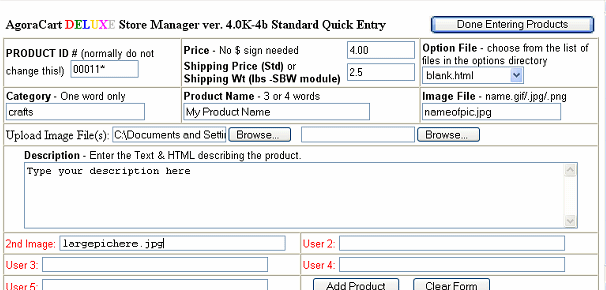
We suggest using a program called IRFANVIEW to edit your product pictures down to size. The program can be downloaded for free from www.irfanview.com , and not only reduces the size your pictures appears but the file size as well for faster loading times. YOU MUST RESIZE PICTURES FROM A DIGITAL CAMERA before uploading them to the site to the exact size you want them to appear on the site. 300 pixels or smaller is a good rule of thumb to follow. If you get the message TOO MUCH DATA you have not resized your pictures or you need to upload one picture at a time (instead of 2 at a time)
 These
fields are for advanced users only. But you will need to fill out one of the
fields to complete the product addition process.
These
fields are for advanced users only. But you will need to fill out one of the
fields to complete the product addition process. 
Now you are thru entering product information. Now press the Add Product button.
When you are finished adding products, press the "Done Entering Products" button and you will be returned to the main store manager menu where you can edit existing products or delete products.

To create the product page in your store manager, you need to simply add a product with the new category name to the cart.
For example, first email [email protected] with your request for a new page called NEW PRODUCTS - then once I have added it to your menu on the site, you will need to go to your store manager and add a product with the category name newproducts to the store to create the page.
The tutorials here are provided for your information and make no guarantees that you can use them to successfully build your website.
All editing to your site is done at your own risk. Maintenance fees of $15.00 an hour will be charged to correct anything that results from improper editing.
Content copyright 2002 Gone Country Graphics & Country Craft Website Design