
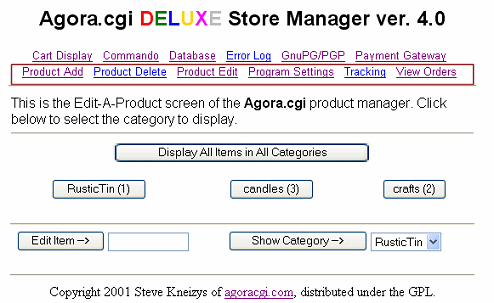
Click the PRODUCT EDIT link to get started.
Next Click the PAGE category where the item is you want to edit.....
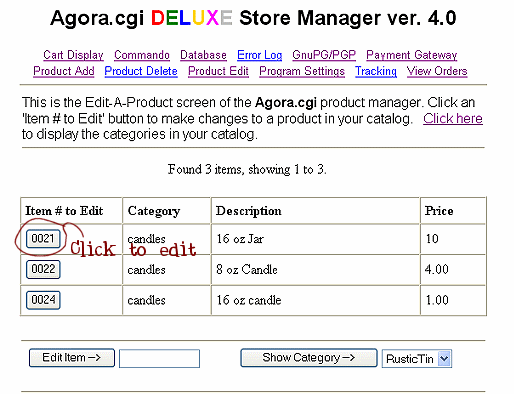
Now click on the item # of the item you want to edit
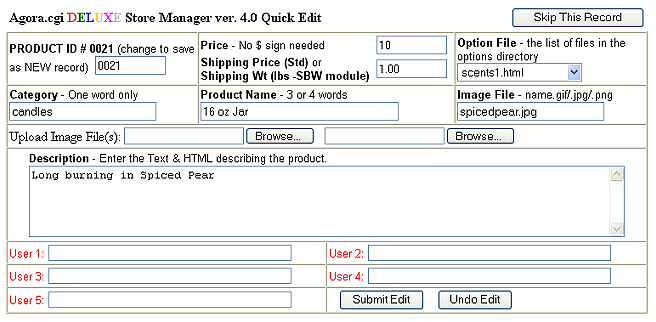
Now you can edit the item using the same exact methods you used when you added the item.
For those instructions.. refer to the Add Your Products page , the only difference being Click on the SUBMIT EDIT button to complete the edit (instead of ADD PRODUCT)
EDITING YOUR OPTION DROP DOWN FILES
You can add and edit drop downs using your Basic Option Editor in your store manager
First step is to name your option file.. such as colors.html , then simply type the choices in the boxes on the next screen. In most cases you are not adding $ for a choice so leave the $ section behind each one blank. Save your changes.
OR you can also edit any of the HTML drop downs
we have created for you by following the steps below... This would apply to
longer lists that have more than 75 choices or any text entry boxes etc that you had us do for you when we
set up your website.
NOTICE- this is a bit advanced and requires editing html so if you do not feel
comfortable doing that please just email us your option file changes and we will
edit them for you.
Step 1 - Go to your main File Manager of your website at http://www.yourwebsiteaddress.com/cpanel
Log in with your user id and password (this User Id would be for your hosting which is usually the first 8 letters of your domain name (usually different than your cart user id))
Step 2 -
once logged in , click the File Manager link, then the
 Public_html folder (the actual picture of the folder not the words)
now since you have a Your Craft Site your drop downs are not located on a page
.. they are inside of the cart folder under the OPTIONS folder.. this is the step by step to get there...
inside the Public_html
folder you will see a list of some graphics and pages and folders..
Click the cart folder (again, the picture of the folder, not just the words)
then the html folder
then the options folder
here you will see a list of all of your option files (they are html files such
as colors.html etc)
Those you open up with the Edit File link and make your changes you need and then Save
If you need to you can call and have me walk you through editing one you can..sometimes that makes it easier for you.
once viewing the html of the option file you will see how the choices are set up
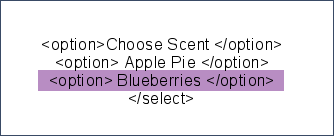
You will need to highlight and then COPY (CONTROL C) the area highlighted above in purple. Then PASTE (control V) it above the /select code. Then simply type over the Blueberries with the new scent (or other option) that you wanted to add.
Repeat as many times as needed to add your new choices. To delete an option just backspace the option you do not want there anymore from the start of option in purple above to the end of /option above.
When done editing the html click SAVE at the bottom of the screen.
The tutorials here are provided for your information and make no guarantees that you can use them to successfully build your website.
All editing to your site is done at your own risk. Maintenance fees of $15.00 an hour will be charged to correct anything that results from improper editing.
Content copyright 2002 Gone Country Graphics & Country Craft Website Design